Over 75% of my blog traffic comes from mobile/tablet views. This makes complete sense to me, as it is how I read all the blogs I like to keep up with. Keeping track of them using Bloglovin, or browsing those which catch my attention from Facebook or Twitter. The only time my laptop comes out is to write these posts so I keep social media tabs closed to save from distraction. It is for this reason I haven’t realised that many of my badges don’t appear on mobile view. Here is a tutorial on How to add a badge to mobile view on Blogger.
Now many of us bloggers are part of blogging networks which have lovely badges, that we display in our sidebar or footer, telling others you are part of this network. The trouble with this is that when viewed from mobile devices these badges don’t display. Not a problem if it is just a badge, but some (such as the Tots100, Foodies100 & Hibs100) have badges that contain code which track our blog traffic. This is used as part of the metrics which determine our chart positions, with the positions changing monthly. This is the Tots100 badge I display
It shows my current chart position (April 2016 = 46, this will change monthly). Obviously, by having this displayed only on desktop views, all the mobile traffic isn’t recorded. The good news is that it is actually very easy to add this to mobile views by adding a very small snippet of text to your HTML……………….. Come back! It’s not that scary, I promise.
Here is how to do just that, in an easy step-by-step guide: (Top Tip: make sure you backup your template before playing around with the html)
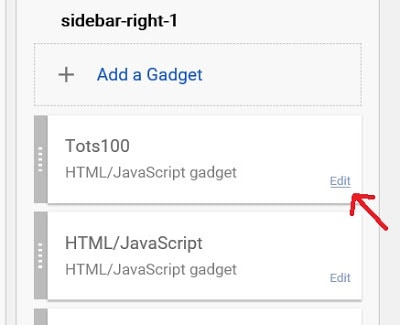
Locate your badge in your sidebar and label it if you haven’t done so already (you can remove this label later on if you wish) – for ease I label it with Tots100 as that’s what the badge is. To label, go into your dashboard, click on layout and find the badge, click edit and add a title and save.
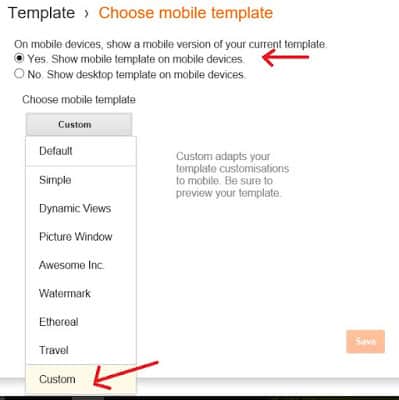
Next, click template in your dashboard. Under mobile view, you will see a cog, click on that and ensure you have checked ‘Yes, show mobile template on mobile devices’, then click on the grey box which says ‘display mobile template’ – choose custom which is at the bottom and press save. (this will allow you to edit your html for mobile views)
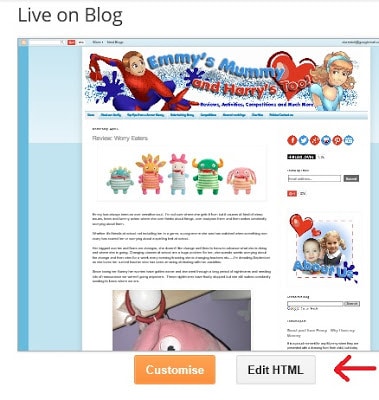
Now you need to click on edit html (on your dashboard, select template)
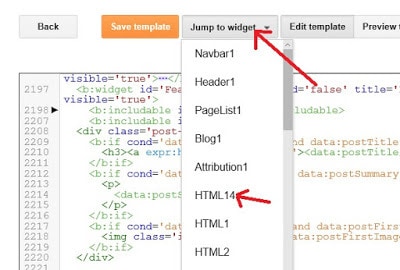
How you do the next part is up to you – there are 3 ways: Firstly you can use the ‘Jump to widget tab at the top’ – this is a little trial and error, it will be one of the HTML codes, you’ll notice there are a few – you know you are looking for Tots100 (or whatever your badge is named) so click each until you find the correct code.
Secondly, you can use Ctrl F to search and find the code you are looking for – I find this very temperamental, and 80% of the time I can’t find what I am looking for.
Thirdly, and my preferred method is just to scroll through the code until you find what you are looking for – this obviously takes the longest but once you have an idea where you are looking it is rather quick (I promise)
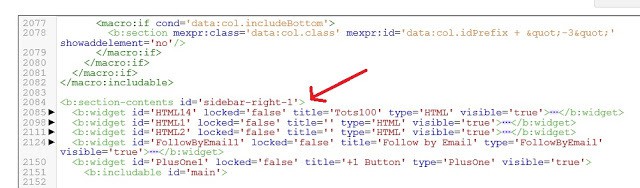
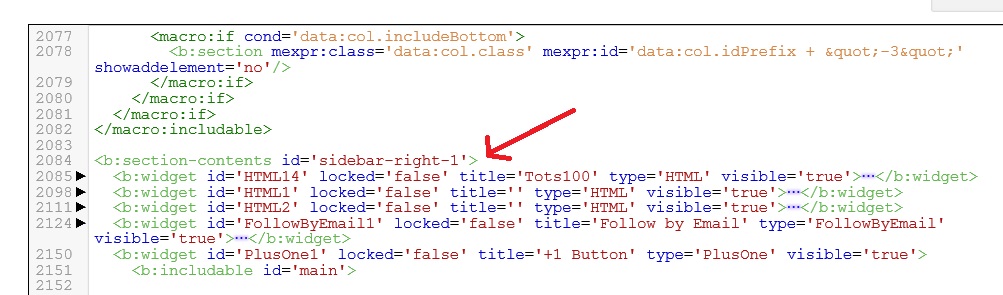
Locate your sidebar (mine is one the right – but it could be yours is on the left), unless of course your badge is in your footer then you need to scroll down a little further and locate the title.
Now you need to add a snippet of code to your html to make this show up on mobile view – the code you need to add is: mobile=’yes’ this is added between ‘false’ and title (you need to remember to add a space after ‘false’ and after your code before title.Without the code it will look like this (the HTML number will be different depending on the location of the badge in your sidebar): <b:widget id=’HTML14′ locked=’false’ title=’Tots100′ type=’HTML’ visable=’true’>—</b:widget> With the code it will look like this: <b:widget id=’HTML14′ locked=’false’ mobile=’yes’ title=’Tots100′ type=’HTML’ visable=’true’>—</b:widget>Click save and you are done.
You can remove the title of the badge if you prefer (go back to layout, find the badge and remove title – remember to save your changes)To check this has worked click on template, and the cog under mobile view, select preview and your badge should display at the bottom of your posts in mobile views.
If you want a badge to display on mobile view only, replace the above code with mobile=’only’ (don’t forget to add a space either side of the code and save)
*EDIT* You’ll notice that this blog is no longer on the Blogger platform as I made the move over to WP in August 2016. The instructions for this tutorial are all still correct.
Subscribe to get the latest posts sent to your email.
Clare
Hi, I'm Clare (Emmy's Mummy). A former Nanny and Mother of 2 - Emmy (born February 2010) and Harry (born October 2012). We are Essex based and share our adventures and misadventures of a busy crazy life.
Comments (32)
How did you add your badge onto your blog?? I have one and it’s in Photobucket and as I paste the code in the gadget, only the picture comes up…no code (this is in preview). do I need to add the code into CSS too?? TIA!
This was really really helpful, thank you! I’d followed a tutorial in the past but it had missed off a crucial step so it wasn’t working, got it sorted now!
I am so pleased to hear this.
Hahaha fixed it! 😀
YAY – so pleased
Tragically my Tots account was deleted and I’m struggling to make this work at all now with my new badge. Thank you so much for posting it though. Without it I’d never have done so well in Tots in the past as 75% of my views are also mobile x
I need all of the technical help I can get, I will be saving this post and referring to it for sure.
Any problems them shout and I’ll help
Thank you SO much, I was wondering how to do this. GREAT POST!! xx
You are very welcome
Thank you so much for this! Great step by step instructions x
This is great – just what I needed to know! Thank you
This tutorial is really clear, I love the screenshots it makes it so easy to follow, Thankyou for doing mine x
Thank you, must have a look later when I'm wide awake and not feeding baby girl! Xx
Great post! Have got the badges I want now showing on mobile aka tots100 and my yoomi mummy one!
Yay. I'm glad it was helpful
Yay. I'm glad it was helpful
All done- you are a STAR, thank you! x
You are very welcome
Really helpful! So do mobile views not count in the TOTS100 score if you don't do this?
I'm afraid not. The badge need to be on every page to be tracked so if not displayed on mobile views you are loosing all that counted traffic
Thank you so much for this! Most of my pageviews are on mobile so this should help with my ranking.
Very pleased it will help you
This post is going to help so many people! x
I do hope so Donna
Thank you so much for doing my badge for me xx
You are very welcome
You make this look so easy to do. Thank you for your help the other day x
You are most welcome. Was a good test to see if this tutorial worked. Out of 35 blogs I changed only 1 wouldn't work due to the theme
Great post. I've been wondering how to feature badges on mobile view in blogger.








How did you add your badge onto your blog?? I have one and it’s in Photobucket and as I paste the code in the gadget, only the picture comes up…no code (this is in preview). do I need to add the code into CSS too?? TIA!
This was really really helpful, thank you! I’d followed a tutorial in the past but it had missed off a crucial step so it wasn’t working, got it sorted now!
I am so pleased to hear this.
Hahaha fixed it! 😀
YAY – so pleased
Tragically my Tots account was deleted and I’m struggling to make this work at all now with my new badge. Thank you so much for posting it though. Without it I’d never have done so well in Tots in the past as 75% of my views are also mobile x
I need all of the technical help I can get, I will be saving this post and referring to it for sure.
Any problems them shout and I’ll help
Thank you SO much, I was wondering how to do this. GREAT POST!! xx
You are very welcome
Thank you so much for this! Great step by step instructions x
This is great – just what I needed to know! Thank you
This tutorial is really clear, I love the screenshots it makes it so easy to follow, Thankyou for doing mine x
Thank you, must have a look later when I'm wide awake and not feeding baby girl! Xx
Great post! Have got the badges I want now showing on mobile aka tots100 and my yoomi mummy one!
Yay. I'm glad it was helpful
Yay. I'm glad it was helpful
All done- you are a STAR, thank you! x
You are very welcome
Really helpful! So do mobile views not count in the TOTS100 score if you don't do this?
I'm afraid not. The badge need to be on every page to be tracked so if not displayed on mobile views you are loosing all that counted traffic
Thank you so much for this! Most of my pageviews are on mobile so this should help with my ranking.
Very pleased it will help you
This post is going to help so many people! x
I do hope so Donna
Thank you so much for doing my badge for me xx
You are very welcome
You make this look so easy to do.
Thank you for your help the other day x
You are most welcome. Was a good test to see if this tutorial worked. Out of 35 blogs I changed only 1 wouldn't work due to the theme
Great post. I've been wondering how to feature badges on mobile view in blogger.
Thank you